How I Deployed a Personal Website on Hetzner VPS
On this page 6 sections
Update, September 2026: This describes the original C-server deployment. The site now generates static HTML and serves it directly through nginx; the C server has been retired from production. The walkthrough below remains a record of the original setup.
A step-by-step walkthrough of how I deployed my personal website, built with C and Lit HTML, on a virtual private server#
My personal website, where you are currently reading this article, is fully self-hosted: the backend/HTTP protocol is built from scratch with C, the front end is done with lit-html, and the hosting is on Hetzner virtual private server (VPS) for $5 per month.
I used tools like Vercel and Heroku before, but thought that I wanted to have full control over my server and decided to tap into the world of DevOps a bit, so in this article, I’ll walk you step by step through the process and the deployment pipeline (as of the date of writing this post).
Step 1: Creating a server#
Of course, the first step is to create an actual machine. Head to Hetzner and create an account. Once you have an account (ideally with 2FA), go to console → servers and create a server. Select the desired disk space, OS, e.g., I have Ubuntu, and location (I’ve put mine in Helsinki, Finland). When you are ready, press create, and you’ll get your personal virtual server.
Step 2: SSH, Fail2Ban & Firewall#
The next step I took was setting up SSH, configuring the firewall, and installing Fail2Ban. From the Hetzner UI, navigate to your new server and find the firewall rules. Allow TCP ports:
22(SSH – you can change this later for extra security)80(HTTP – web traffic)443(HTTPS – secure web traffic)
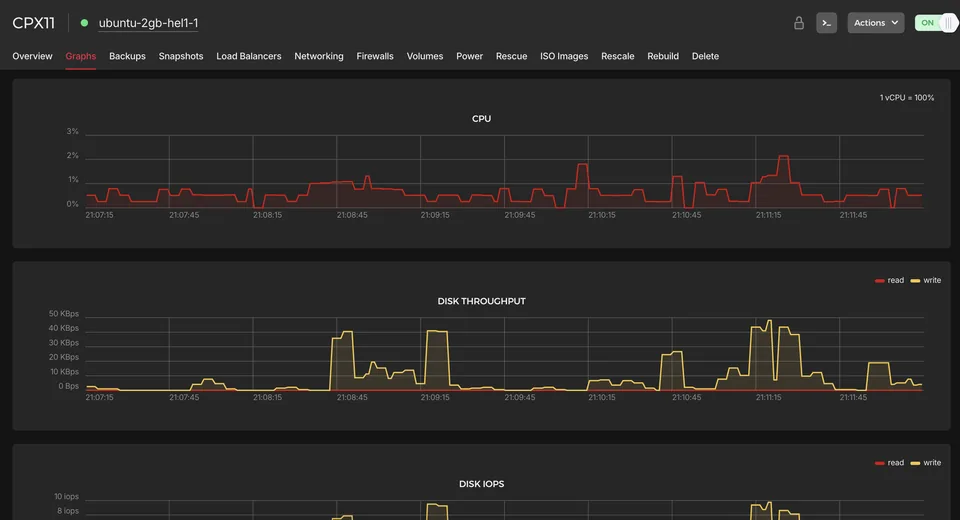
With your server selected, you can navigate to the main dashboard and open the server’s terminal.
You will be prompted to log in with the root user. If you don’t know the root password (I didn’t get one when creating my server), go to the Rescue tab in the dashboard and click “Reset root password”. This will let you create a new root password you can use to log in.
Once you are in your server’s terminal, configure a new user, SSH, and fail2ban.
It’s not a good idea to always use root. Let’s add a user with sudo privileges:
# replace "john" with your name/username
adduser john

# add the new user to the sudo group
usermod -aG sudo john
Now let’s set up SSH access so you can connect securely from your local machine.
On your local machine (e.g., laptop), generate an SSH key if you don’t already have one:
ssh-keygen -t ed25519 -C "[email protected]"
This will create a key pair in ~/.ssh/id_ed25519 (private) and ~/.ssh/id_ed25519.pub (public).
Copy your public key to the server (replace john and your_server_ip):
ssh-copy-id john@your_server_ip
If ssh-copy-id isn’t available, you can copy the contents of ~/.ssh/id_ed25519.pub manually and paste them into your server under:
mkdir -p ~/.ssh
nano ~/.ssh/authorized_keys
chmod 600 ~/.ssh/authorized_keys
chmod 700 ~/.ssh
Test your login:
ssh john@your_server_ip
If that works, disable root login and password authentication for security. Edit the SSH config:
sudo nano /etc/ssh/sshd_config
Update the following:
PermitRootLogin no
PasswordAuthentication no
Then restart SSH:
sudo systemctl restart ssh
Now, let’s set up UFW Firewall. Ubuntu comes with UFW (Uncomplicated Firewall), which makes firewall management simple. In your server:
sudo apt update
sudo apt install ufw -y

# allow SSH, HTTP, HTTPS
sudo ufw allow OpenSSH
sudo ufw allow 80/tcp
sudo ufw allow 443/tcp

# enable firewall
sudo ufw enable

# check status
sudo ufw status
The last step is to install and configure fail2ban. Fail2Ban helps block brute-force login attempts.
sudo apt install fail2ban -y
By default, Fail2Ban works out of the box, but we’ll create a local config so updates don’t overwrite it:
sudo cp /etc/fail2ban/jail.conf /etc/fail2ban/jail.local
Open the config:
sudo nano /etc/fail2ban/jail.local
Look for the [sshd] section and ensure it’s enabled:
[sshd]
enabled = true
port    = ssh
filter  = sshd
logpath = /var/log/auth.log
maxretry = 5
Restart Fail2Ban:
sudo systemctl enable fail2ban
sudo systemctl start fail2ban
Check its status:
sudo fail2ban-client status sshd
At this point, you have a new user with sudo privileges, SSH key login (no passwords, root login disabled), Firewall, and Fail2Ban protecting against brute-force attempts.
Step 3: Server Binaries & Deployment#
With the server secure, the next step is to actually deploy the website code.
1. Install essential tools
First, update your server and install the basic tools you’ll need:
sudo apt update && sudo apt upgrade -y
sudo apt install build-essential git -y
build-essentialgives you GCC, make, and other compiling tools.gitlets you clone and update your project.
2. Clone your repository
On your server, choose a directory (I use /var/www for web projects):
cd /var/www
sudo git clone https://github.com/yourusername/yourproject.git
cd yourproject
(If your repo is private, set up SSH keys between your server and GitHub/GitLab first.)
3. Build your server
Since my backend was written in C, I compiled it directly on the server with GCC, but of course, this step depends on what you actually use for the backend development.
Step 4: Running with Systemd
Right now, if you close the terminal, your server stops. To keep it running in the background and restart automatically on boot, we’ll use systemd.
Create a new service file:
sudo nano /etc/systemd/system/mywebsite.service
Example configuration:
[Unit]
Description=My Personal Website
After=network.target

[Service]
User=john
WorkingDirectory=/var/www/yourproject
ExecStart=/var/www/yourproject/server
Restart=always
RestartSec=5
Environment=PORT=80

[Install]
WantedBy=multi-user.target
Save and exit, then enable the service:
sudo systemctl daemon-reload
sudo systemctl enable mywebsite
sudo systemctl start mywebsite
Check status:
sudo systemctl status mywebsite
Now your server binary will run in the background and auto-start after a reboot 🚀.
Step 4: Cloudflare & Nginx (Optional but Recommended)#
Hetzner gives you a raw IP address. To make it production-ready, let’s add a domain and HTTPS.
1. Point the domain to Hetzner
- Go to your domain registrar.
- Set an A record pointing to your Hetzner VPS IP.
- (If you use Cloudflare, set the record in the Cloudflare DNS dashboard and enable proxy.)
2. Install Nginx as a reverse proxy
Instead of exposing your raw server directly, use Nginx to handle TLS, static files, and reverse proxying.
sudo apt install nginx -y
Create a config:
sudo nano /etc/nginx/sites-available/mywebsite
Example reverse proxy:
server {
    server_name yourdomain.com www.yourdomain.com;

    location / {
        proxy_pass http://127.0.0.1:80;
        proxy_set_header Host $host;
        proxy_set_header X-Real-IP $remote_addr;
    }
}
Enable and restart:
sudo ln -s /etc/nginx/sites-available/mywebsite /etc/nginx/sites-enabled/
sudo nginx -t
sudo systemctl restart nginx
3. Add HTTPS with Let’s Encrypt
Using Certbot:
sudo apt install certbot python3-certbot-nginx -y
sudo certbot --nginx -d yourdomain.com -d www.yourdomain.com
Certificates auto-renew, and your site now has HTTPS.
Conclusion#
By this point, you should have a fully working VPS setup:
- A secure server with SSH keys, UFW, and Fail2Ban
- Your website source is pulled from Git and compiled directly on the machine
- A systemd service keeping your server binary alive and restarting it automatically
- (Optionally) Nginx and Let’s Encrypt handling domains, HTTPS, and reverse proxying
Compared to services like Vercel or Heroku, this approach gives you complete control over your stack: from the low-level server process to the way traffic flows through your machine. Of course, that also means you’re responsible for monitoring, updates, and keeping things secure — but that’s part of the fun and learning.
If you’ve followed along, you now have your own little slice of the internet running on Hetzner for just a few dollars a month 🚀. For me, building my site this way was as much about the learning experience as the final result, and I hope this walkthrough helps you on your journey to running your own projects on a VPS.
Next Steps#
Getting my site live on a VPS is a big milestone, but there’s always more you can do to improve reliability, security, and developer experience. Here are a few directions I’m exploring next:
- Monitoring & Logs – tools like
htop,journalctl, or services like Grafana + Prometheus to track server health, uptime, and resource usage. - Backups – Regularly back up your code and configuration files (Hetzner also offers snapshot backups of entire servers).
- CI/CD Deployment – Automate deployments with GitHub Actions or GitLab CI so every push to
maincan rebuild and restart the systemd service on the server. - Scaling & Load Balancing – If the project grows, consider running multiple VPS instances behind a load balancer or using containerization (Docker, Kubernetes).
- Extra Hardening – Change the default SSH port, enable 2FA for SSH with tools like
google-authenticator, or set up a VPN to restrict server access.
With these improvements, you’ll move from just running a website to maintaining a production-ready server setup — all while staying in control of your infrastructure.